Enhanced Direct Messaging Experience
Enhanced Direct Messaging Experience
Product Release: 02/26/2026
We’re excited to announce a major upgrade to Direct Messaging within the Community platform!
This release delivers a modernized, intuitive messaging experience designed to improve engagement and make it easier than ever for members to manage one-to-one and group conversations.
Highlights
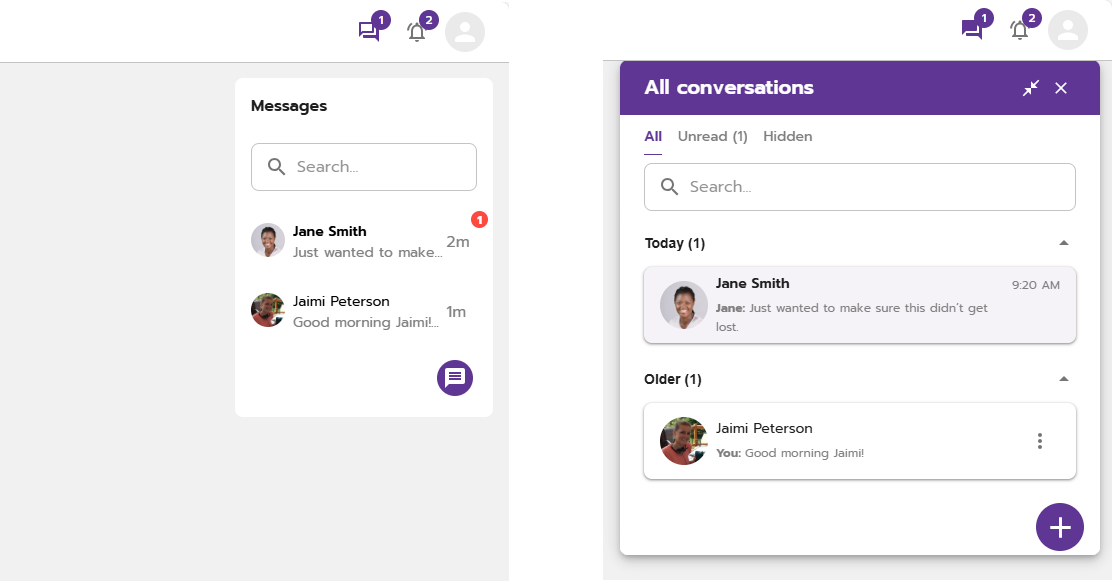
Flexible, draggable messenger
Click and drag functionality allows users to reposition the messenger window and continue interacting with content behind it — including while in an active session.
Tabbed conversation organization
Conversations are now organized into three tabs for easy filtering:
- All - the default view; displays every conversation.
- Unread - shows only conversations with unread messages, with a count badge so users know exactly how many need attention.
- Hidden - a dedicated space for conversations the user has chosen to tuck away.
Within each tab, conversations are grouped into an accordion by recency: Today, Yesterday, This Week, and Older.
New conversation management actions
Users now have self-serve control over their inbox with the ability to hide, mute, and leave conversations (details below).
Before & After
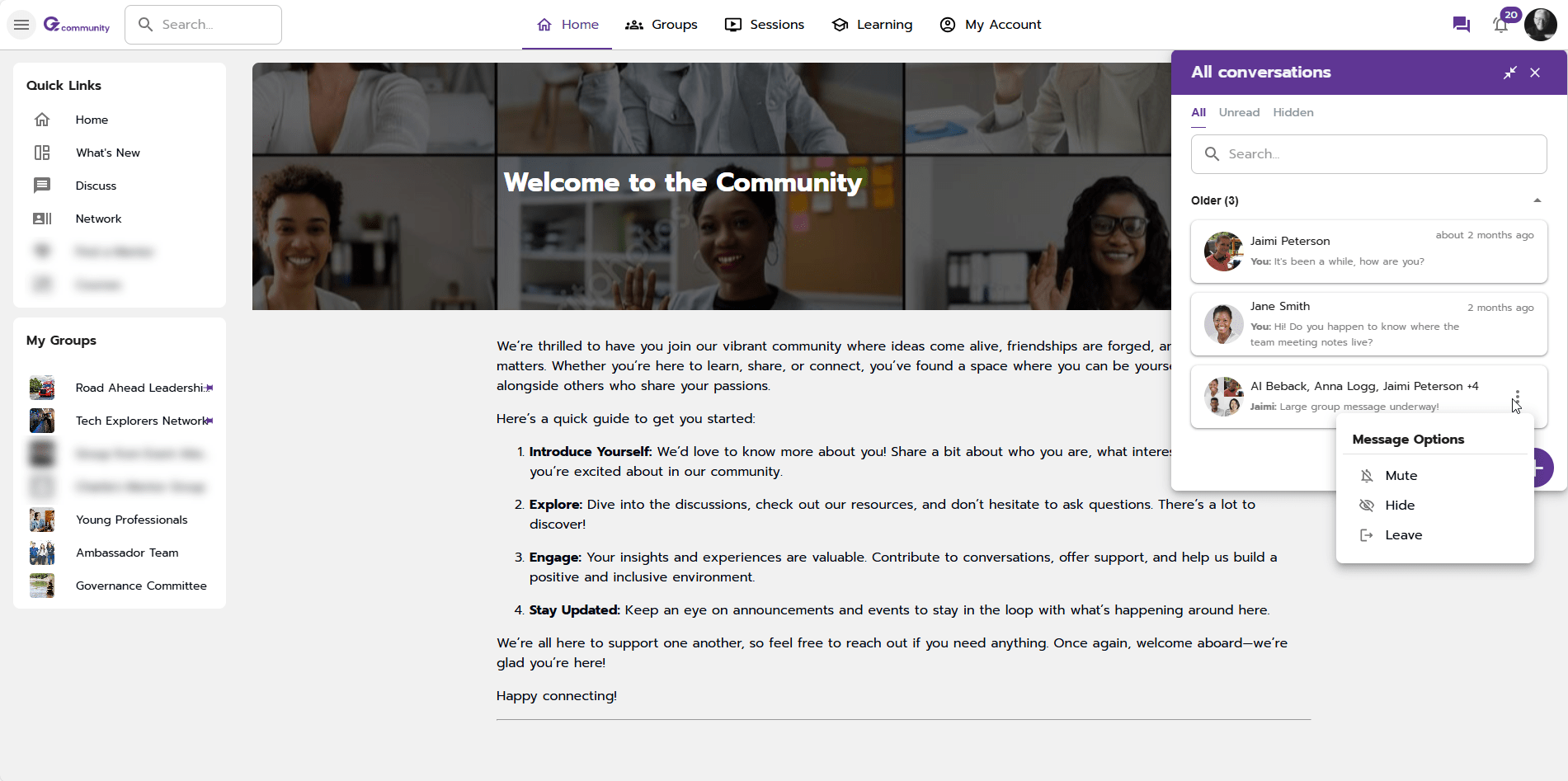
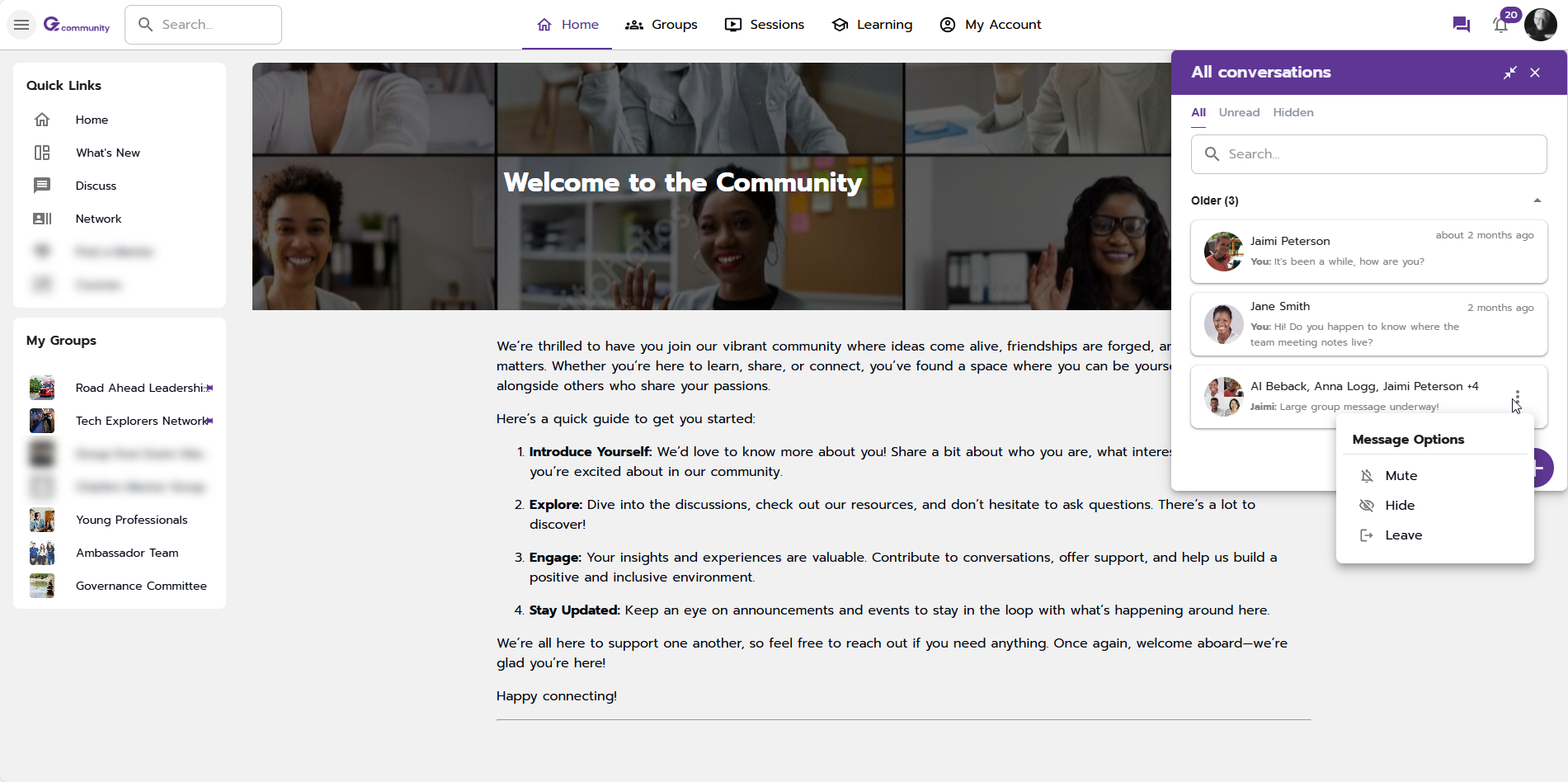
Message Options
Mark a Conversation as "Read"
Any conversation can be manually marked as read, which will remove it from the Unread tab. Note: there is currently no option to mark a conversation as unread.
Mute/Unmute a Conversation
Muting a conversation disables the toast notification that appears in the upper right corner. However, the notification bubble on the messenger icon will still reflect the total number of conversations with unread messages. Muted conversations are indicated by a bell icon with a slash through it.
Unmuted conversations will trigger both the toast notification and the messenger icon notification bubble as expected.
Hide/Show a Conversation
Hiding a conversation removes it from the All and Unread tabs - it will only appear in the Hidden tab. A few important behaviors to note:
- Unread conversations that are hidden will be automatically marked as read.
- If a hidden conversation is later shown again, it will not revert to an unread state.
- If a new message is posted in a hidden conversation, it will automatically surface back in the All and Unread tabs.
Leave a Conversation
The option to leave a conversation is available for group conversations only and will not appear for 1:1 direct messages. When a user leaves, a message is posted in the conversation notifying other participants.
Creating a Chat/Conversation
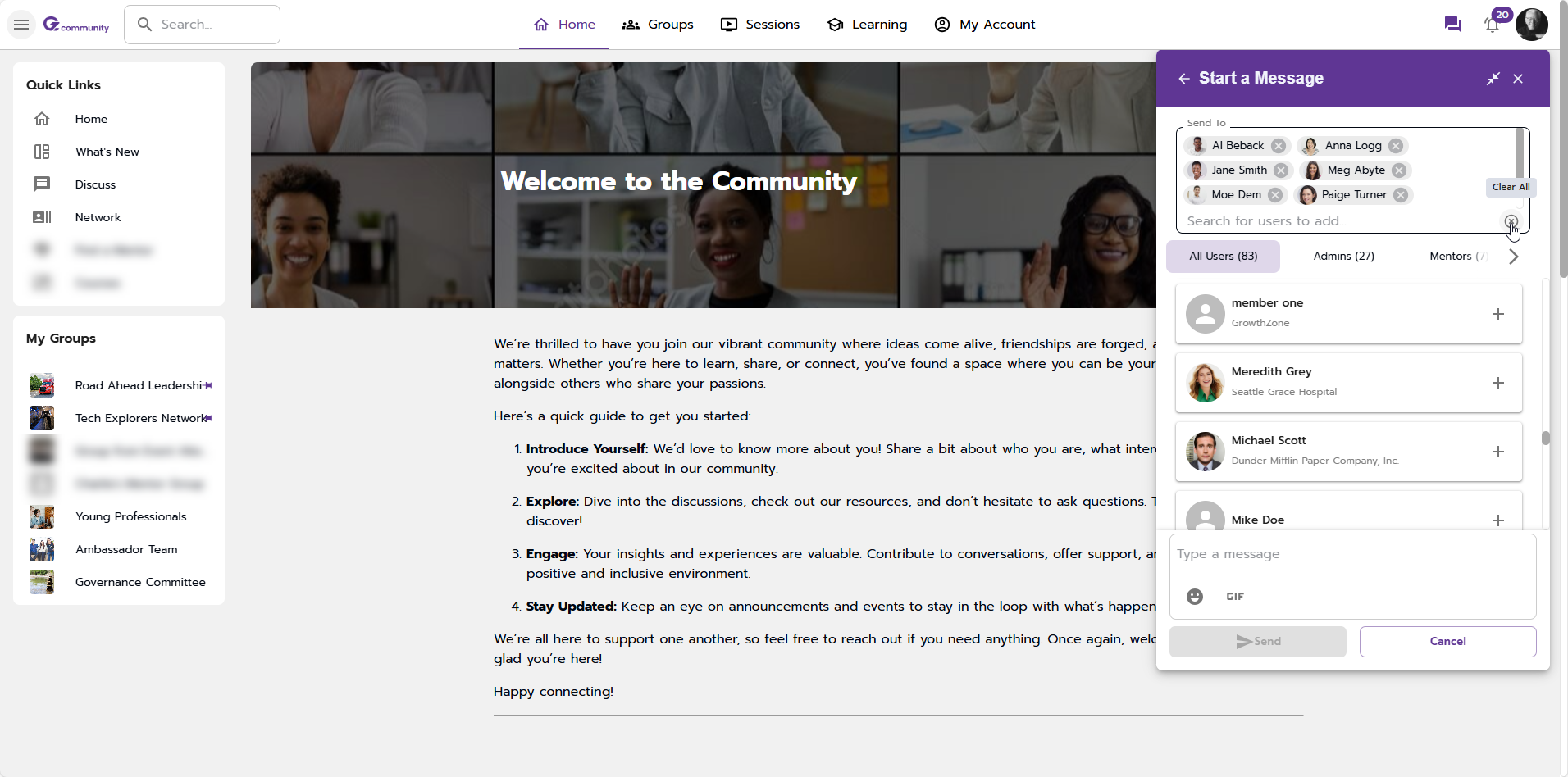
- The participant list automatically excludes deactivated users, and users who have individually disabled messaging.
- A new Clear All button allows users to reset their participant selection during chat creation. (Note: this option is only available before the conversation is created, not after.)
- Conversations support a maximum of 100 participants.
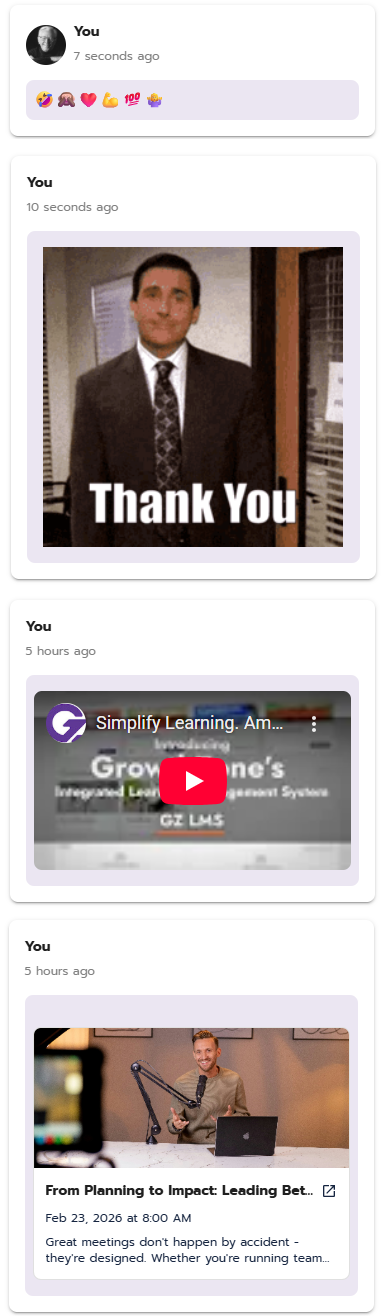
- Media renders properly inline, including:
- GIFs
- Emojis
- YouTube videos
- Community Session links
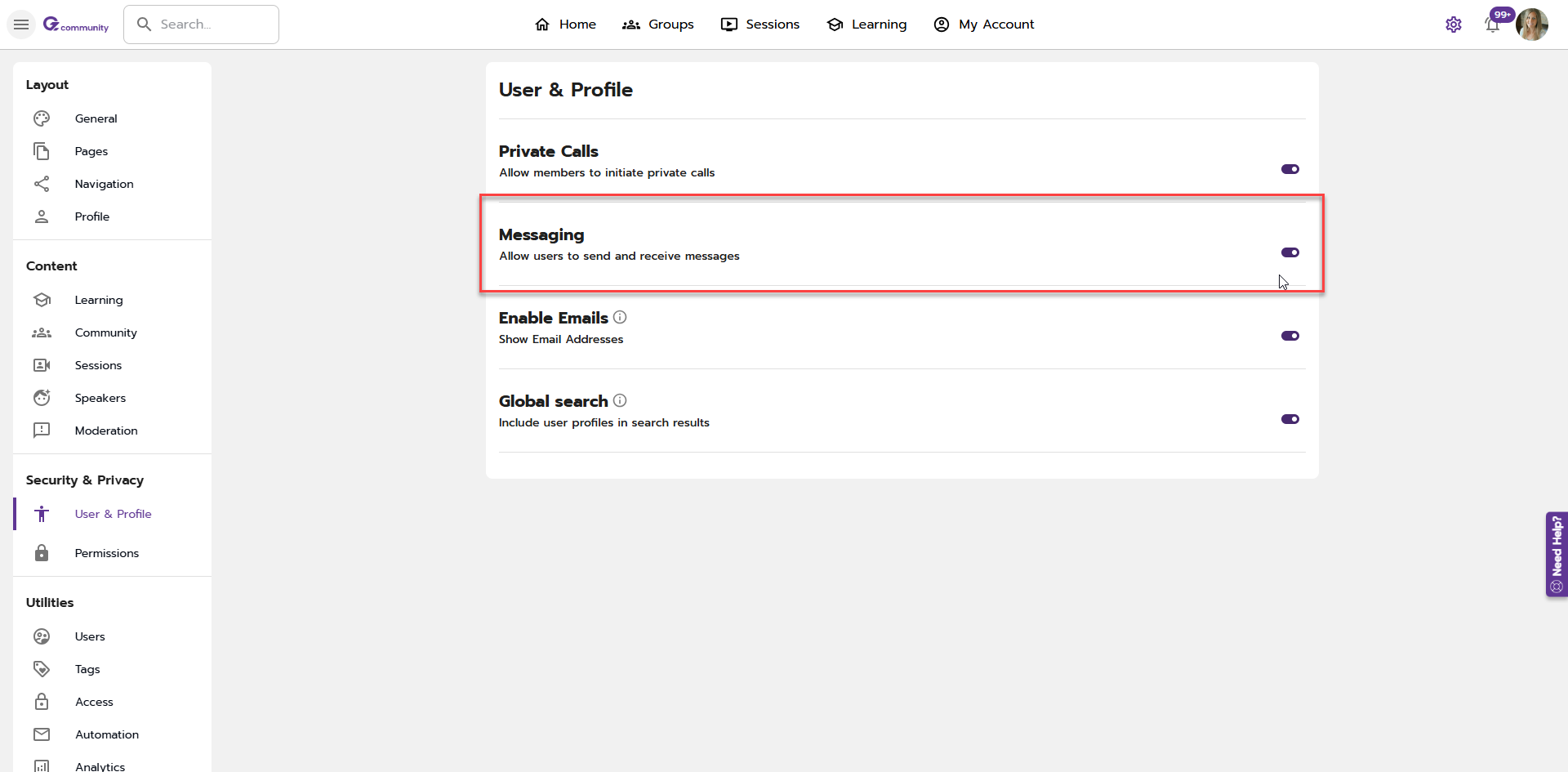
Don't see the messenger icon or panel? No worries! Check your community settings to ensure the feature is enabled.
Where to find?
- Click on the gear icon in the upper right corner
- Under Security & Privacy in the left navigation, click on User & Profile
- Ensure the Messaging setting is enabled